Setting up Apple Pay
Learn how to configure Odus to accept Apple Pay payments via Adyen.
Odus only supports Apple Pay integration with Adyen using Adyen-managed Apple Pay certificates. Self-managed certificates are not supported at this time.
Before proceeding, ensure you have completed the general Adyen integration as described in the Adyen integration guide. Once you have a working Adyen integration, setting up Apple Pay involves changes in your Adyen account as well as minor configuration on your environment.
Configuring your environment
Apple Pay will not work with http://localhost, you must have a valid domain with HTTPS enabled.
You can use tunnel services like ngrok to expose your local development environment over HTTPS for testing purposes.
There's no additional requirements from Odus to support Apple Pay via Adyen, however Apple Pay imposes some requirements on your domain that you need to fulfill:
- Your domain must be served over HTTPS with a valid SSL certificate. Apple Pay will not work on domains with self-signed certificates or when served over HTTP.
- To accept real payments, you must host the Apple domain association file on your domain as described below.
Hosting the domain association file
This section only applies if you're using Adyen Live environment. In Adyen Test, you don't need to host the domain association file.
Apple Pay requires that each domain is verified by hosting a specific file on your server at https://<your-domain>/.well-known/apple-developer-merchantid-domain-association. Adyen provides that file for you to host in their documentation. Make sure that the file is:
- Publicly accessible without any password or authentication
- Served over HTTPS
- Served with the correct
Content-Typeheader:text/plain
You can run the following command to validate that your domain is setup correctly (replace <your-domain> with your actual domain):
domain="your-domain.com"; [ "$(curl -s "https://${domain}/.well-known/apple-developer-merchantid-domain-association" | cksum)" = "$(curl -s "https://eu.adyen.link/.well-known/apple-developer-merchantid-domain-association" | cksum)" ] && echo "✓ Checksums match for ${domain}" || echo "✗ Checksums differ for ${domain}"
If you get "✓ Checksums match", your domain is correctly hosting the file. If you get "✗ Checksums differ", double-check that the file is correctly hosted and accessible.
Adyen account setup
You may have more than one Apple Pay payment method in your Adyen account, especially if you were integrating Apple Pay previously. It is important that you only have one active Apple Pay payment method (named "Apple Pay", don't confuse with network-specific ones like "Apple Pay - MasterCard").
Failing to ensure that will result in intermittent failures to initialize Apple Pay inside Odus Checkout.
You need to request Apple Pay to be enabled in your Adyen account if it is not already, you can do this by going to Settings > Payment methods > Apple Pay and following the instructions there. Once Apple Pay is enabled, you need to perform a few more steps to complete the setup.
Domain registration
Your Adyen user needs to have the Change payment methods role assigned to be able to register new domains. You can request this role from Adyen support if you do not have it.
If you're using a tunnel service for local development, you can obtain a permanent domain for that service and register it in Adyen as well.
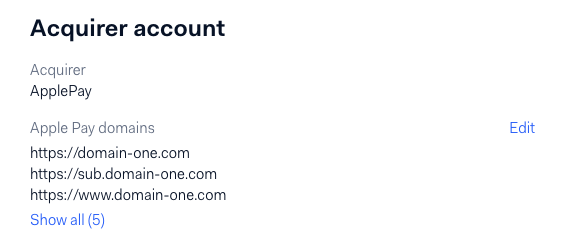
To use Apple Pay, you must register all domains where you plan to show Apple Pay buttons inside Odus Checkout. Keep in mind that this includes top-level domains (e.g., odus.com) and subdomains (e.g., docs.odus.com) including www, which is also considered a subdomain and must be registered separately if you plan to use it (e.g., www.odus.com).
Navigate to Settings > Payment methods in Adyen Customer Area, choose Apple Pay from the list of payment methods (not Apple Pay - MasterCard or similar) and scroll down in the section to the right until you see the "Acquirer account" section. You should be able to edit your Apple Pay domains there:
API Credentials configuration
If you haven't created API credentials for Odus yet, follow the instruction in the Adyen integration guide to create them.
Navigate to Developers > API Credentials and edit your API credential that is used for Odus integration. You need to ensure that Apple Pay is present in the "Wallet Payment methods" section and is configured to use Adyen-managed certificates. After that add the following permissions, if not already present:
API Clientside Encryption Payment roleManagement API — Payment methods read
Testing Apple Pay
If integrating through Adyen Test environment, you have to use an Apple Sandbox account with a test card. Regular Apple ID with real cards will not work in Adyen Test environment. You need to have an Apple Developer account to create Sandbox testers, see Apple's documentation for more details.
To test in Adyen Live environment, you can use a regular Apple ID with real cards. Make sure that your domain is registered in Adyen Live and that the Apple domain association file is correctly hosted. In Live environment, your card will be charged for real money, so make sure to use a low-value transaction for testing.
Troubleshooting
Apple Pay does not appear on the checkout page
Apple Pay button will only appear in Safari as it is the only browser that supports Apple Pay natively.
If the button still doesn't appear in Safari, ensure that:
- You have a default gateway configured for Apple Pay in Settings > General in Odus Dashboard.
- Apple Pay is enabled in Odus Checkout configuration.
Apple Pay button appears, but the payment sheet closes immediately upon opening
This means that Odus was not able to obtain an Apple Pay merchant session from Adyen. This is usually caused by one of the following reasons:
- Your domain is not registered in Adyen
- The Apple domain association file is missing or inaccessible
- There is more than one Apple Pay payment method in Adyen or the active one is configured to use self-hosted Apple Pay certificates.
Payments fail to complete when using Adyen Test environment
Apple Pay transactions in Adyen Test environment require the use of Apple Sandbox test cards. Ensure that you are using a valid Apple Sandbox account and test card when testing Apple Pay in Adyen Test environment. Regular cards will not work in the test environment.